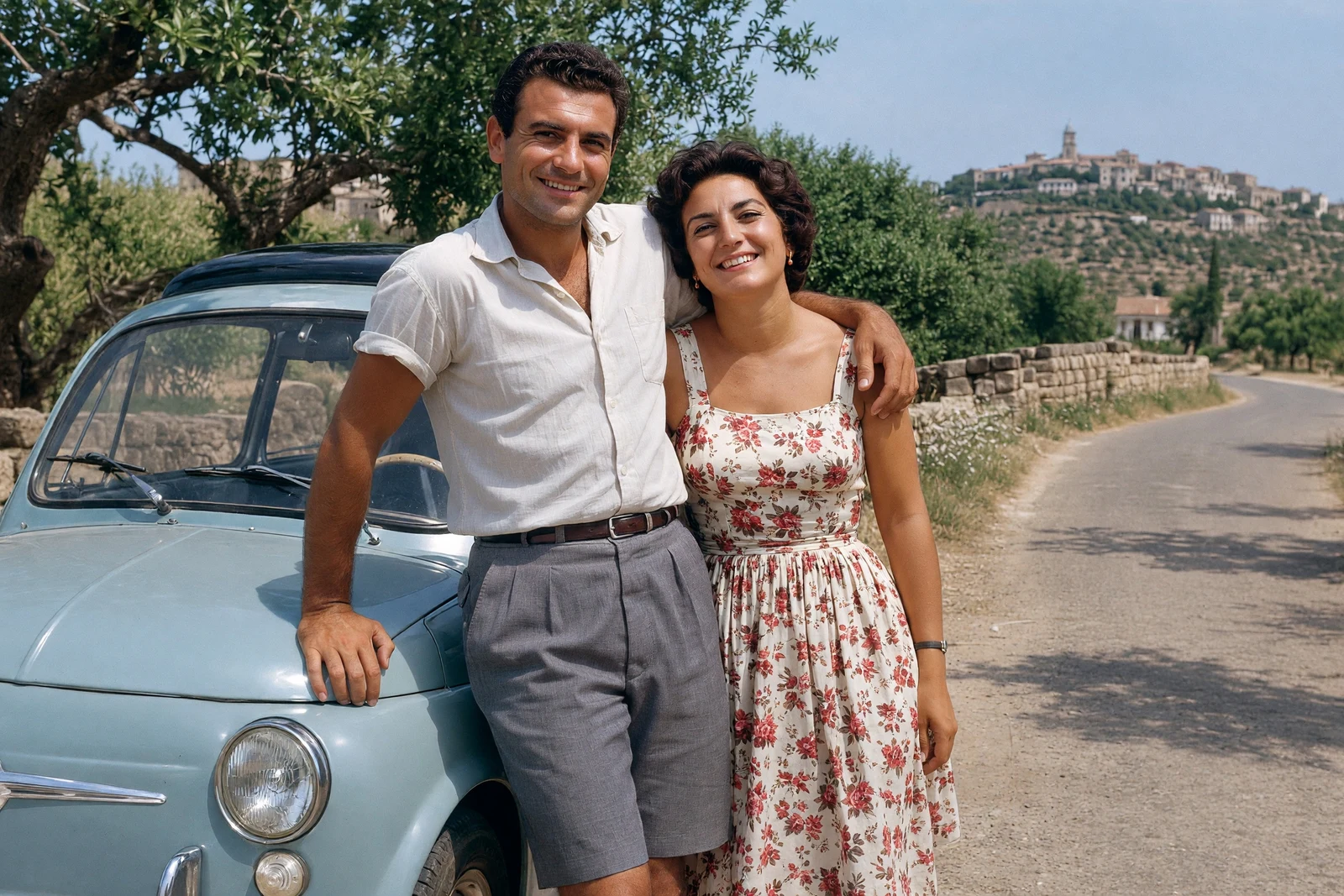
Colorizing a black-and-white photograph can make a familiar scene feel unexpectedly immediate. Skin, clothing and surroundings become easier to separate, and a family picture may become more engaging for people who struggle to connect with a monochrome image. But colorization adds an interpretation: a black-and-white photograph does not record the original colors in the way a color photograph does.
The best workflow keeps that distinction clear. Preserve the monochrome original, create a separate color version and review the result for natural appearance and obvious mistakes. This guide explains how to colorize black-and-white photos in Logowski, what to check afterward and how to handle collections without turning every picture into the same oversaturated style.
Colorization creates plausible color, not verified history
A grayscale tone can correspond to many different real colors. A dark jacket might have been navy, brown or black, and similar-looking flowers could have had very different hues. Automated colorization uses visual context to produce a plausible version, but that does not establish the exact appearance of the original scene.
If historical accuracy matters, gather independent references: family recollections, surviving garments, contemporary color photographs or reliable records. Even then, keep the source and the interpretation separate. Do not present a guessed uniform color or a reconstructed badge as proof of a historical fact. A compelling family illustration and an evidential record serve different purposes.
Natural-looking color is also different from maximum saturation. A result can feel convincing with restrained tones, subtle variation in skin and a balanced background. Bright grass and uniformly pink faces may attract attention in a small preview but look less believable on closer inspection. Judge the people and the scene, not just the intensity of the colors.
Black-and-white photo: before and color result
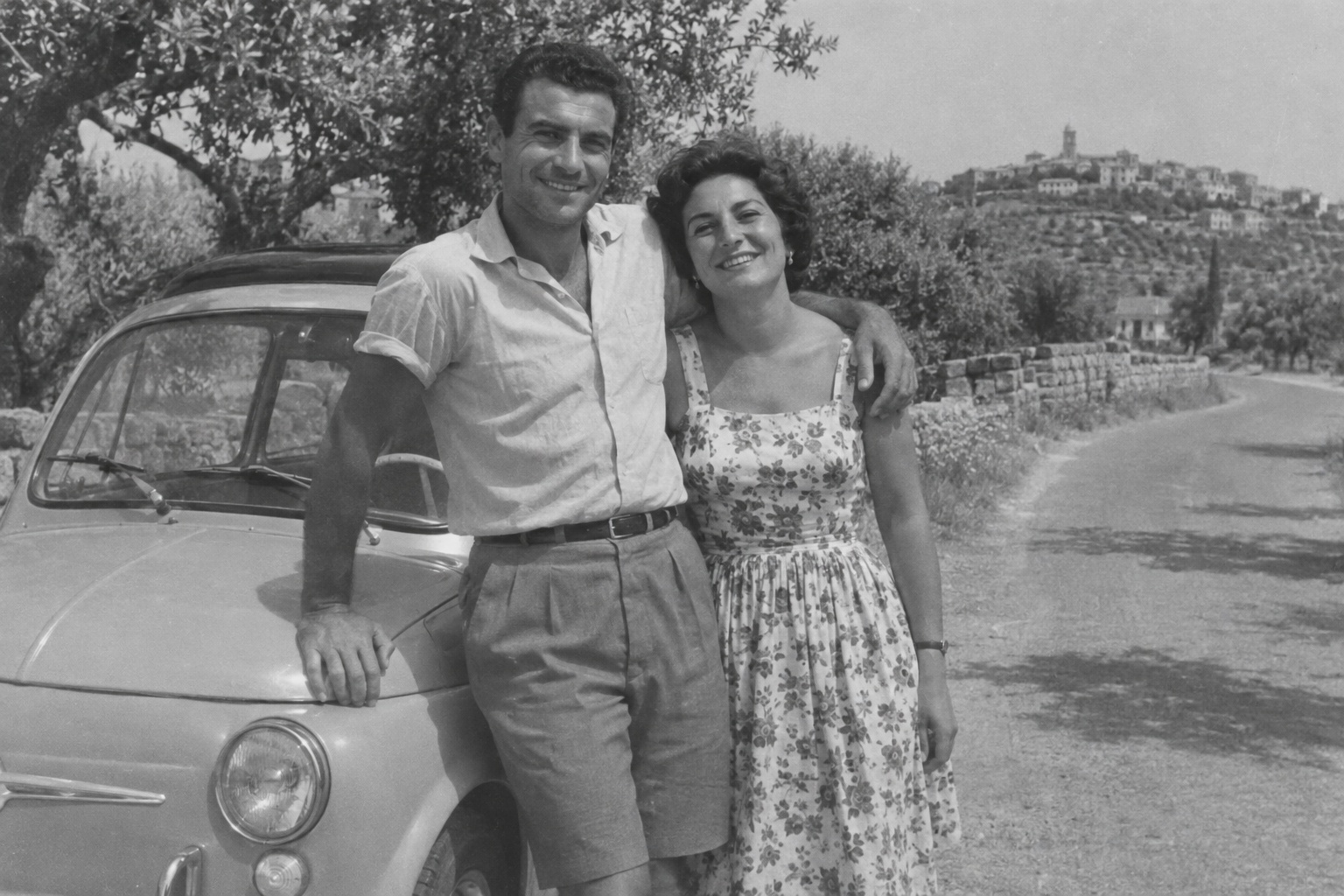
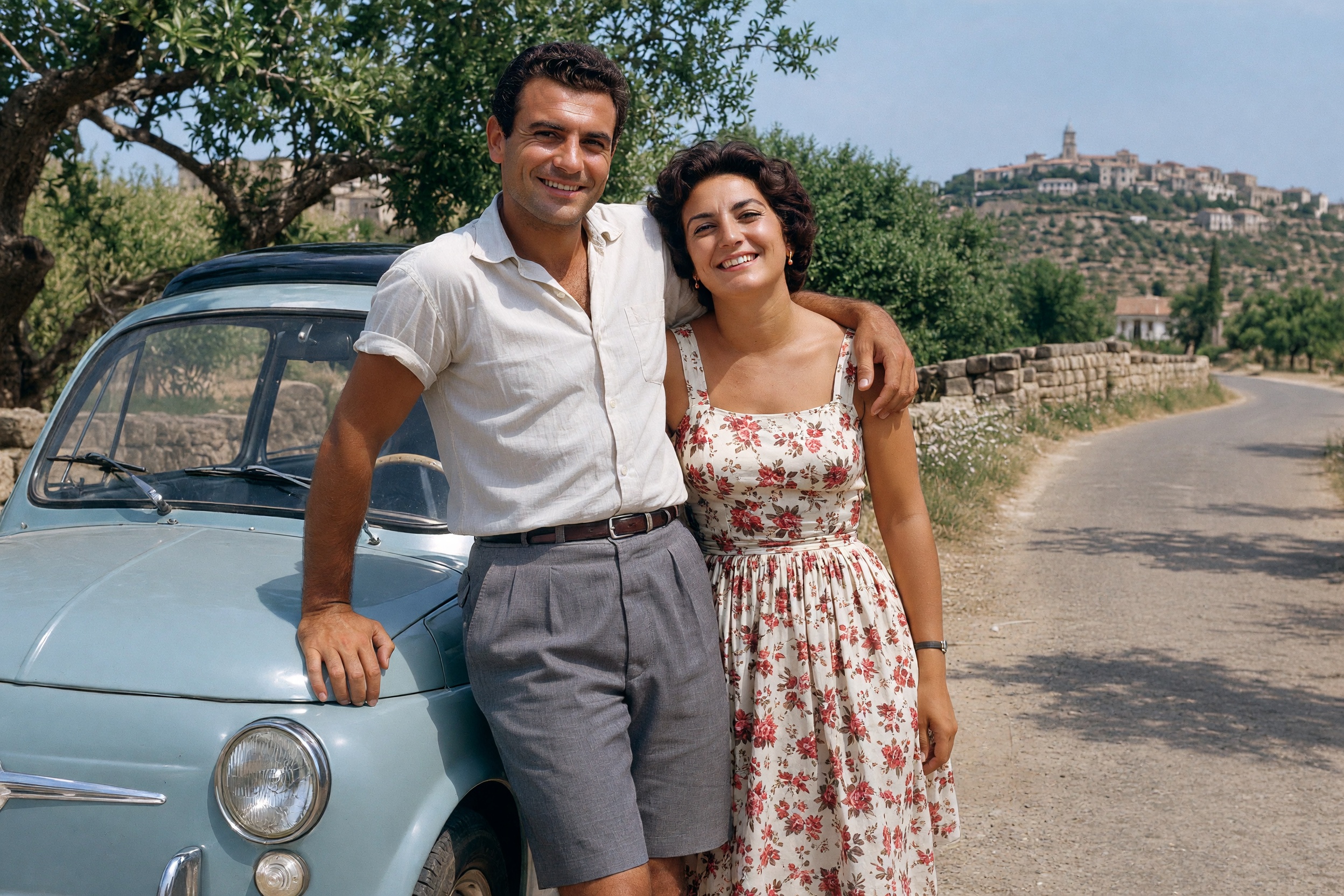
The demonstration is not an archival claim about real people or a particular historical vehicle. It shows a practical review task: compare the same scene before and after processing, then decide whether the color version is useful. The original remains the reference for identity, composition and visible photographic detail.
Prepare a good source for colorization
Use the best scan or original file you have. A tiny preview, a photograph through glass or a compressed screenshot gives processing less reliable structure to work with. Keep an unchanged source before experimenting. If there are several scans of the same print, compare them for sharpness, glare and missing edges rather than choosing solely by file size.
Identify physical damage before focusing on color. A crease across a face, heavy staining or a missing corner is a restoration problem as well as a color problem. The scratched-photo guide explains checks for repaired areas. Strong color should not distract you from a damaged face that still needs attention.
Decide the purpose of the output. A color version for a family slideshow can be judged differently from a museum catalog reproduction. If you deliver work professionally, agree in advance whether the client expects an interpretation, a carefully referenced color treatment or simply improved visibility. Avoid promising exact historical colors when the source cannot support that promise.
Keep any known color references in your own job notes. A client may remember the color of a dress, hair or a family car. This information is valuable during review even if it is not part of the automated workflow. Do not assume a polished result must match those memories unless you have checked it.
How to colorize an old photo in Logowski
Open Photo Restoration, upload the image and run the analysis. Review the selected mode rather than assuming every monochrome image needs an identical treatment. A clean portrait, a group photograph and a scratched scene present different restoration challenges, even when all three start in black and white.
On the review step, check the Restore colors option. Keep it enabled when you want a color interpretation and disable it when the goal is monochrome cleanup. Review individual file settings and the credit total before starting. This is particularly important in a mixed job containing both color originals and black-and-white scans.
Sign in to begin processing. When the result is ready, compare it against the source and open the full-size view. Check that the composition, orientation and recognizable facial features remain consistent. A beautiful palette does not compensate for a face that has changed or a small object that has been reconstructed incorrectly.
Download the accepted result under a name that distinguishes it from the source. Keep a monochrome reference alongside it when sharing a historically important collection. If the color interpretation is unsuitable, return to the original for a new attempt rather than repeatedly processing the colorized output and gradually drifting away from the source.
A checklist for natural-looking photo colorization
Start with skin tones, but do not expect every face to have the same hue or brightness. Lighting, shade and the original exposure affect the scene. Look for abrupt color boundaries around ears, fingers and hair, and for color bleeding onto collars or backgrounds. Small faces can need more careful review than the main subject.
Check materials separately. Fabric, polished metal, painted surfaces, foliage and road surfaces should not all have the same flat color treatment. Watch for portions of clothing left gray next to strongly colored areas. A car or building may contain several materials and reflections; the result should remain coherent rather than merely colorful.
Look at the background and edges of the frame. A result can colorize the people convincingly while leaving trees, distant figures or a patch of ground inconsistent. Compare the whole frame at a normal viewing size, then inspect difficult transitions at full size. Avoid approving an image only because the center looks good.
Finally, reduce the comparison to a simple question: does this version help people read the photograph while preserving the source’s character? If the color feels distracting, a restored monochrome version may be the better final choice. Colorization is an option, not a requirement for a successful restoration.
Keep colorized collections easy to understand
For a family archive, separate original scans, restored monochrome copies and color interpretations. Use filenames or folder labels that make those differences obvious. This prevents a future viewer from assuming that a recent color version is an original color photograph, especially after files are copied away from the project where they were created.
Process a small sample from each album or lighting situation before a large job. Portraits against a studio backdrop and outdoor photographs can behave differently. Review the sample with the person who knows the collection, if possible, and agree on a consistent balance between cleanup, natural texture and color intensity.
Logowski supports up to 500 images per job, ZIP archives up to 250 MB and individual images up to 25 MB. Keep the original collection in your own storage and download approved results promptly. For preparation, reporting and review across many files, see the batch restoration guide.
Frequently asked questions
Can colorization recover the exact original colors?
Not from a monochrome image alone. It produces a plausible interpretation. Use independent references when exact colors matter and keep the original image separate from the colorized version.
Can I restore a black-and-white photo without adding color?
Yes. Turn off the color option when reviewing the job if you want a monochrome result. Cleanup and colorization are separate decisions.
Why are some parts of a colorized photo still gray?
Fine boundaries, small objects and ambiguous surfaces can be difficult to interpret. Inspect the complete image rather than assuming that a successful-looking face means every background region is correct.
Is colorization suitable for historical research?
It can help communicate or illustrate a scene, but it is not proof of original colors. Retain the unmodified source and clearly identify the color version as an interpretation.
Should I colorize every photo in a family album?
Not necessarily. Some images may be more effective in monochrome, or may contain details that are too uncertain. Test representative examples and keep both versions when useful.
Can I analyze the photos without signing in?
Yes. Analysis is available before registration. Processing and use of available credits require sign-in; check the selected modes and total before starting.
Check your own photographs before processing a large batch
Upload a small representative selection, run the free analysis and review the recommended modes. Processing requires sign-in; the credit total is shown before you start.
Restore Photos View credits and plans